
Need to convert an MP4 video into a text transcript? Whether you are repurposing a webinar recording, creating subtitles for a training video, or extracting notes from a Zoom call, transcribing MP4 files has become a routine task for content creators, marketers, and business teams alike.
MP4 transcription is the process of converting the audio track inside an MP4 video file into written text using speech recognition technology. Modern AI-powered tools can complete a one-hour transcription in under five minutes with accuracy rates exceeding 95 percent across major languages — a dramatic improvement from manual methods that typically require four to six hours of work per hour of audio.
This guide walks you through five practical methods to transcribe MP4 video to text, compares their accuracy, speed, and cost, and shows you how to pick the right approach for your workflow.
Why Transcribe MP4 Videos?
Before diving into the methods, it helps to understand why MP4 transcription matters for different workflows.
Content Repurposing
A single 30-minute video can yield a 4,000-word blog post, multiple social media snippets, and an email newsletter. Transcripts make this extraction process systematic rather than guesswork.
Accessibility and Compliance
The Web Content Accessibility Guidelines (WCAG 2.1) require captions or transcripts for all pre-recorded audio content. In education, the Americans with Disabilities Act (ADA) mandates equivalent access to multimedia. Transcripts meet both requirements simultaneously.
SEO and Discoverability
Search engines cannot watch videos. A transcript turns your video content into indexable text, which dramatically increases the chances of appearing in search results. Studies from 2025 show that pages with video transcripts receive 16 percent more organic traffic on average than identical pages without them.
Knowledge Management
Meeting recordings, training sessions, and interviews accumulate fast. Without transcripts, the information inside these videos remains locked — searchable only by whoever remembers watching them. A transcript makes every spoken word findable.
Method 1: AI-Powered Transcription Tools (Recommended)
AI transcription tools are the fastest and most cost-effective way to transcribe MP4 files. They use large-scale speech recognition models trained on thousands of hours of audio across dozens of languages.
How It Works
- Upload your MP4 file or paste a video URL
- The tool extracts the audio track automatically
- An AI model converts speech to text, typically with speaker identification
- You receive an editable transcript with timestamps
Accuracy
Modern AI transcription tools deliver 93 to 97 percent accuracy for clear audio in major languages (English, Japanese, Spanish, Chinese, German). Accuracy drops with heavy accents, overlapping speakers, or significant background noise — typically to the 85 to 90 percent range.
Speed
Most tools process audio at 5 to 10 times real-time speed. A 60-minute MP4 file takes roughly 6 to 12 minutes to transcribe.
When to Use
- Meeting recordings (Zoom, Google Meet, Teams)
- Webinars and training videos
- Podcast episodes saved as MP4
- Any video where audio quality is reasonable
Felo Subtitles: Real-Time and File-Based Transcription
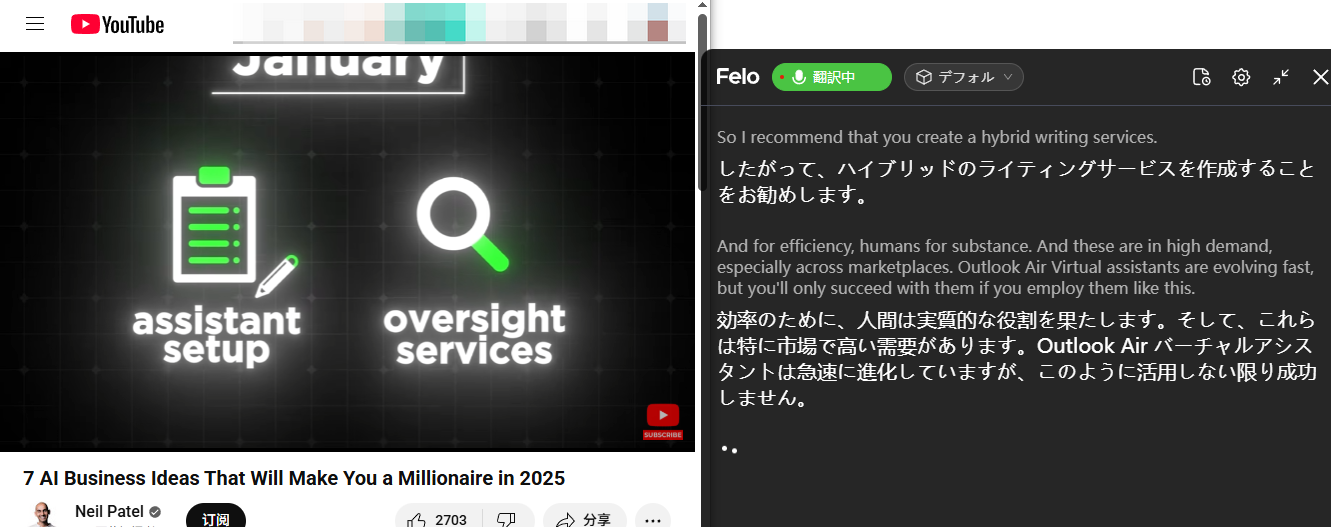
Felo Subtitles handles both real-time and file-based transcription. Upload an MP4 file and receive a transcript with timestamps, speaker labels, and the option to translate into 90+ languages simultaneously. The no-bot architecture means you can also use it during live meetings without alerting other participants.
Key capabilities for MP4 transcription:
- File upload: Drag and drop MP4, MOV, WAV, or MP3 files
- Multi-language: Recognizes 20+ languages and translates to 90+
- Speaker identification: Distinguishes multiple speakers automatically
- Export formats: TXT, SRT, VTT, DOCX
- AI summary: Generates key points and action items from the transcript
Method 2: Manual Transcription
Manual transcription means a human listens to the audio and types out every word. This remains the gold standard for accuracy in specialized domains.
How It Works
- Open the MP4 file in a media player
- Play a few seconds, pause, type what you heard
- Rewind and verify
- Repeat until done
Accuracy
A skilled human transcriber achieves 99 percent or higher accuracy, even with technical jargon, accents, or poor audio quality. This is the benchmark against which all automated methods are measured.
Speed
Manual transcription takes 4 to 6 hours per hour of audio for a proficient typist. For complex material with specialized terminology, the ratio can reach 8 to 1.
When to Use
- Legal proceedings (depositions, court recordings)
- Medical dictation requiring exact terminology
- Academic research requiring verbatim quotes
- Any situation where a single word error could have consequences
Drawbacks
The time and cost make manual transcription impractical for high-volume workflows. Professional transcription services charge between 1.00 and 3.00 USD per audio minute, meaning a one-hour video costs 60 to 180 USD.
Method 3: YouTube Auto-Captions as a Workaround
If your MP4 is already on YouTube or you can upload it temporarily, YouTube’s automatic captioning provides a free transcription path.
How It Works
- Upload the MP4 to YouTube (set to unlisted if private)
- Wait for YouTube to generate auto-captions (usually 15 to 30 minutes)
- Open YouTube Studio → Subtitles → download the auto-generated caption file
- Convert the SRT/VTT file to plain text
Accuracy
YouTube’s auto-captions have improved significantly but still lag behind dedicated transcription tools. Expect 80 to 90 percent accuracy for clear English audio. Multi-language support exists but accuracy varies widely by language.
Speed
Processing takes 15 to 30 minutes after upload, plus the upload time itself. Not ideal for quick turnarounds.
When to Use
- You already have the video on YouTube
- Budget is zero
- Accuracy requirements are flexible
Drawbacks
- Requires a YouTube account
- No speaker identification
- Privacy concerns if the content is sensitive (even unlisted videos are on Google servers)
- Caption quality is inconsistent across languages
Method 4: Desktop Software (Whisper, etc.)
Open-source models like OpenAI’s Whisper can run locally on your computer, providing transcription without uploading files to the cloud.
How It Works
- Install the software (typically via Python pip or a desktop wrapper)
- Point it at your MP4 file
- The model processes audio locally using your CPU or GPU
- Output is a text file or SRT subtitle file
Accuracy
Whisper’s large model achieves 90 to 95 percent accuracy on English audio, with strong performance on many European and Asian languages. The smaller models trade accuracy for speed.
Speed
Depends entirely on your hardware. On a modern laptop with a dedicated GPU, Whisper processes audio at roughly 2 to 4 times real-time. On a CPU-only machine, expect 0.5 to 1 times real-time — meaning a 60-minute video takes 60 to 120 minutes.
When to Use
- Data cannot leave your network (security/compliance requirements)
- You have a powerful workstation with a GPU
- You need batch processing of many files offline
Drawbacks
- Requires technical setup (command line, Python environment)
- No real-time processing
- No built-in translation
- Hardware requirements for reasonable speed
Method 5: Mobile Transcription Apps
Several mobile apps can transcribe MP4 files directly on your phone or tablet.
How It Works
- Open the app and select your MP4 file from your device
- The app either processes locally or uploads to a cloud service
- Receive the transcript within the app
- Export as text or share to other apps
Accuracy
Varies widely. Cloud-based mobile apps achieve 90 to 95 percent accuracy (similar to web tools). On-device processing typically yields 80 to 90 percent accuracy due to smaller models.
Speed
Cloud-based: comparable to web tools (5 to 10 times real-time). On-device: slower, roughly 1 to 3 times real-time.
When to Use
- Transcribing voice memos or short recordings on the go
- Quick notes from a meeting recording on your phone
- No computer access
Drawbacks
- Limited file size support (many apps cap at 30 to 60 minutes)
- Battery drain during on-device processing
- Smaller screens make editing difficult
Comparison: All 5 Methods at a Glance
| Method | Accuracy | Speed | Cost | Best For |
|---|---|---|---|---|
| AI Transcription Tools | 93-97% | 5-10x real-time | Free tier available | Most use cases |
| Manual Transcription | 99%+ | 4-6 hrs per 1 hr | $60-180/hr | Legal, medical, academic |
| YouTube Auto-Captions | 80-90% | 15-30 min delay | Free | Already on YouTube |
| Desktop Software | 90-95% | 0.5-4x real-time | Free (open source) | Offline, high security |
| Mobile Apps | 80-95% | 1-10x real-time | Free to $10/mo | On-the-go, short recordings |
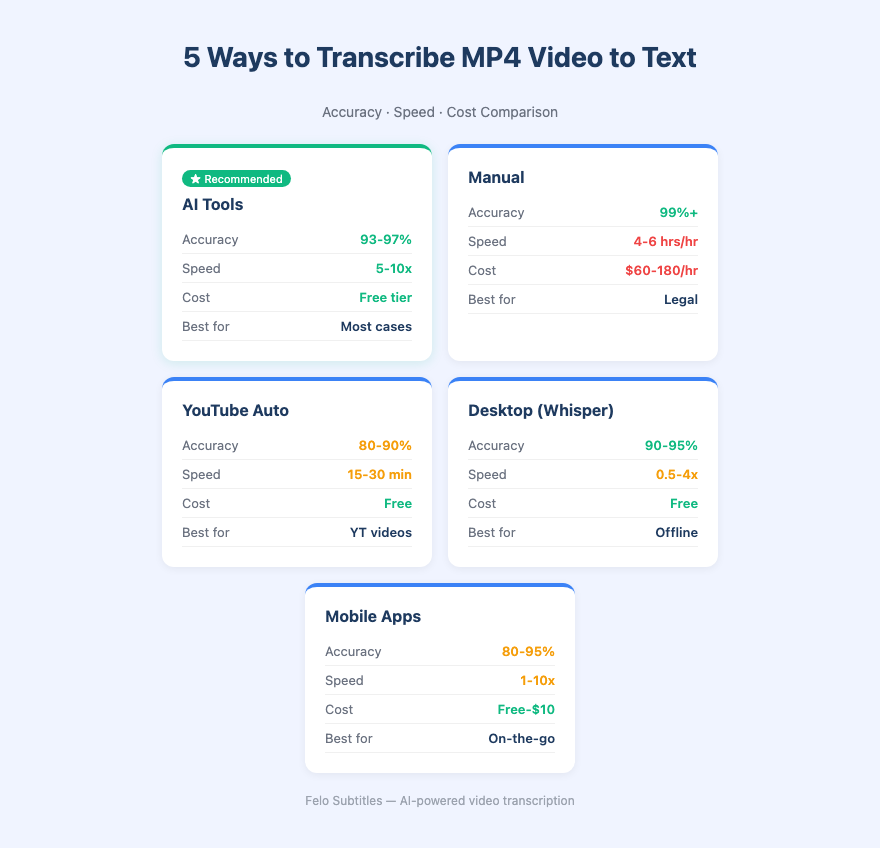
For most users, AI-powered transcription tools offer the best balance of accuracy, speed, and cost. They handle the heavy lifting while allowing you to focus on reviewing and editing the output rather than doing the transcription from scratch.
How to Get the Best Results from MP4 Transcription
Regardless of which method you choose, these practices improve transcript quality.
Before Recording
- Use an external microphone when possible — built-in laptop microphones pick up keyboard noise and fan hum
- Reduce background noise (close windows, mute notifications)
- Ask participants to speak one at a time during meetings
During Upload/Processing
- Choose the correct source language in the tool settings
- Enable speaker identification if available
- Select the highest-quality audio extraction option
After Transcription
- Review the transcript against the original audio for critical sections
- Fix proper nouns, technical terms, and acronyms that AI often mishandles
- Add paragraph breaks and headings for readability
- Use Felo Subtitles’ AI summary feature to extract key points and action items automatically
Step-by-Step: Transcribe an MP4 with Felo Subtitles
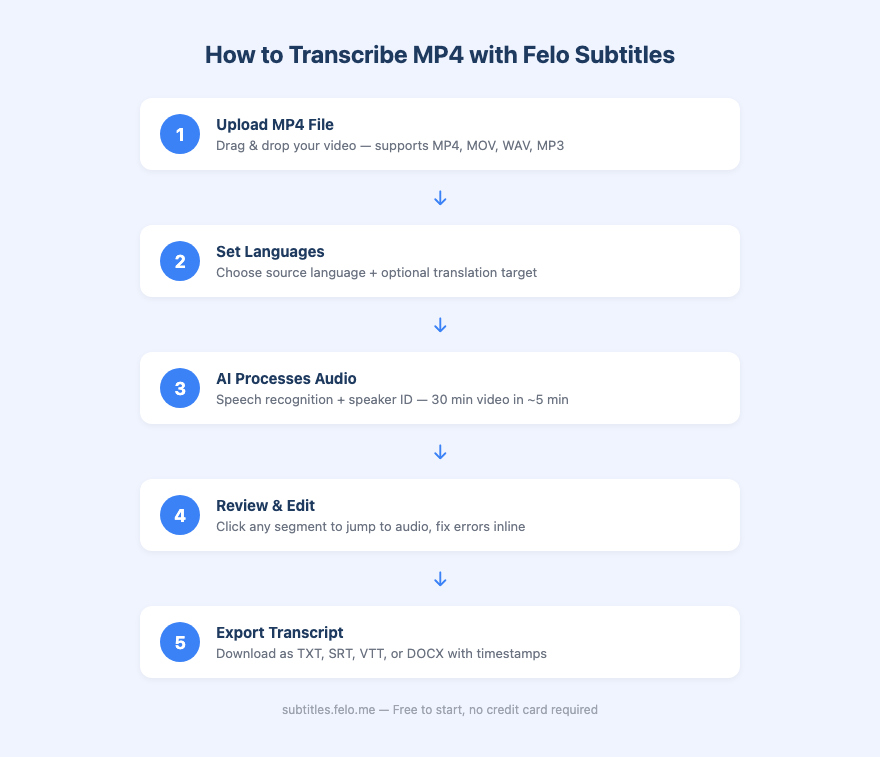
Here is a walkthrough for transcribing an MP4 video using Felo Subtitles.
Step 1: Open Felo Subtitles
Go to subtitles.felo.me and sign in. The free tier includes transcription minutes to get started.
Step 2: Upload Your MP4 File
Click the file upload area and select your MP4 file. Felo Subtitles accepts MP4, MOV, WAV, MP3, and other common formats. Maximum file size is 2 GB.
Step 3: Set Languages
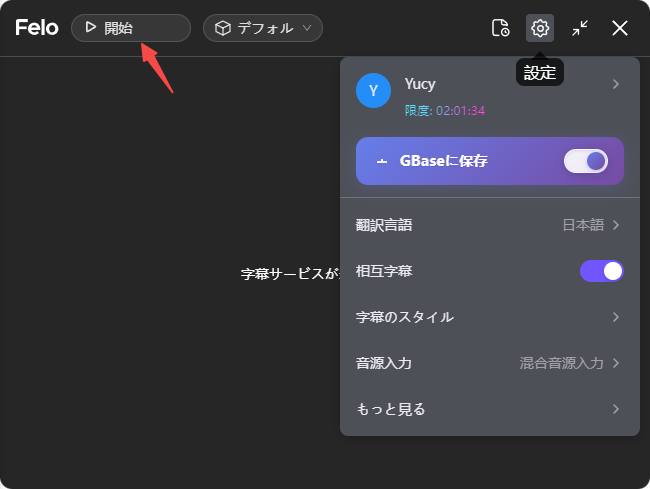
Choose the spoken language in the video (e.g., English) and optionally select a translation language. Felo Subtitles can transcribe and translate simultaneously into 90+ languages.
Step 4: Start Transcription
Click “Start” and wait for processing. A 30-minute video typically completes in 3 to 5 minutes. You will see the transcript appear progressively as each segment is processed.
Step 5: Review and Edit
The transcript appears with timestamps and speaker labels. Click any segment to jump to that point in the audio. Edit directly in the interface to fix any recognition errors.
Step 6: Export
Download your transcript in your preferred format:
- TXT: Plain text for documents and notes
- SRT/VTT: Subtitle formats for video editors
- DOCX: Formatted document with timestamps
Frequently Asked Questions (FAQ)
Q1: What audio formats can be transcribed besides MP4?
Most AI transcription tools accept MP4, MOV, AVI, MKV, MP3, WAV, M4A, FLAC, and OGG. Felo Subtitles supports all major audio and video formats. If your file is in an unusual format, converting to MP4 or MP3 first using a free converter typically solves compatibility issues.
Q2: How accurate is AI transcription for non-English languages?
Accuracy varies by language and tool. For widely spoken languages — Spanish, Japanese, Chinese, German, French, Portuguese — modern AI tools achieve 90 to 95 percent accuracy. For less-resourced languages, accuracy may drop to 80 to 85 percent. Felo Subtitles supports 20+ recognition languages and can translate the transcript into 90+ languages.
Q3: Can I transcribe a video with multiple speakers?
Yes. Most AI transcription tools include speaker diarization — the ability to identify and label different speakers. Accuracy of speaker separation depends on audio quality. Overlapping speech remains the biggest challenge. For best results, use a recording setup where each speaker has a separate audio channel.
Q4: Is my data safe when I upload an MP4 for transcription?
Cloud-based tools process your file on remote servers. Check each tool’s privacy policy for data retention and encryption details. If data security is critical, consider local options like Whisper. Felo Subtitles uses encrypted connections and does not retain audio files beyond the processing window.
Q5: How much does MP4 transcription cost?
Free tiers are common — many tools offer 30 to 120 minutes of free transcription per month. Paid plans typically range from 8 to 25 USD per month for individual users, with volume discounts for teams. Manual transcription services charge 1 to 3 USD per audio minute. Felo Subtitles offers a free tier to get started.
Q6: Can I add the transcript as subtitles back to the MP4?
Yes. Export the transcript as an SRT or VTT file, then import it into your video editor (Premiere Pro, DaVinci Resolve, CapCut, etc.) or upload it alongside the video on YouTube or Vimeo. Felo Subtitles generates properly timed SRT files ready for this workflow.
Summary
Transcribing MP4 video to text is faster and more accessible than ever. AI-powered tools like Felo Subtitles handle most use cases with 93 to 97 percent accuracy in minutes, while manual transcription remains the choice for situations demanding near-perfect accuracy. The right method depends on your accuracy requirements, budget, and volume.
Key takeaways:
- AI transcription tools are the best default choice for speed, cost, and accuracy
- Clear audio and a good microphone improve results regardless of method
- Export transcripts as SRT files to add subtitles directly to your videos
- Review AI-generated transcripts for proper nouns and technical terms
- Start with the free tier of an AI tool and upgrade only if volume demands it
Turn any MP4 into text — accurately, in minutes, for free
Start Transcribing with Felo Subtitles
Free to start · No credit card required