
Whether you are a content creator uploading videos to YouTube, a filmmaker delivering international cuts, or a marketer localizing product demos, you will eventually need to work with an SRT file. The SubRip Subtitle format has been the universal standard for timed text since the early 2000s, and it remains the most widely accepted subtitle format across platforms, players, and editing tools in 2026.
This guide covers everything you need to know about the SRT format — what it is, how it works, how to create one from scratch or with AI, how to edit it, and where to use it. By the end, you will be able to produce broadcast-quality SRT subtitle files for any video project.
If you work with video regularly, you may also find it useful to learn how to transcribe MP4 video to text for a broader look at video-to-text workflows.
What Is an SRT File?
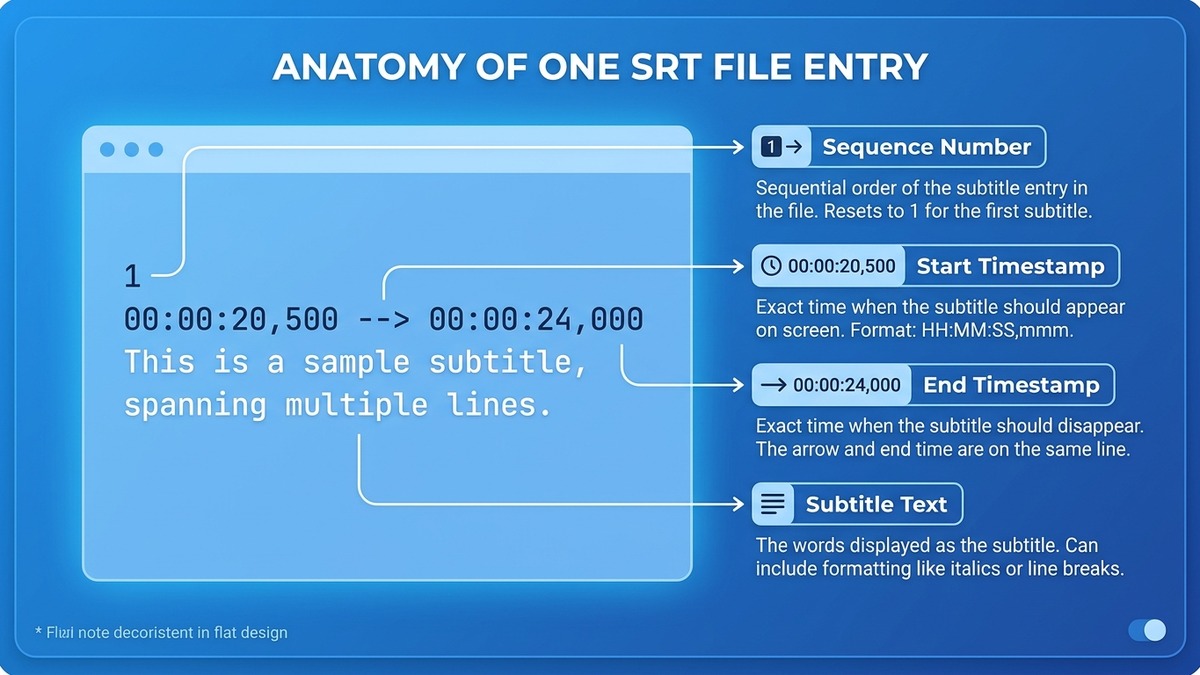
An SRT file (SubRip Subtitle file) is a plain-text file that stores subtitle data in a structured, time-coded format. Each subtitle entry contains three elements: a sequence number, a timestamp pair indicating when the subtitle should appear and disappear, and the subtitle text itself. Because it is plain text, any operating system can open and edit an SRT file without specialized software.
The SRT format was originally developed for the SubRip program, a tool that extracted subtitles from DVDs. Over time, its simplicity made it the default subtitle standard. Today, platforms like YouTube, Vimeo, Facebook, and LinkedIn all accept SRT uploads for closed captions.
SRT File Format Structure
Every SRT subtitle file follows a strict pattern. Here is what a typical entry looks like:
1
00:00:01,000 --> 00:00:04,500
Welcome to our complete guide
on SRT subtitle files.

2
00:00:05,000 --> 00:00:09,200
In this video, we will cover
everything you need to know.

3
00:00:10,000 --> 00:00:14,800
Let's start with the basics
of the SRT format.
Each block is separated by a blank line. The timestamp format is HH:MM:SS,mmm (hours, minutes, seconds, milliseconds), and the arrow --> separates the start time from the end time. The text portion can span one or two lines — most style guides recommend keeping each line under 42 characters for readability on screen.
Key Rules of the SRT Format
- Sequence numbers must start at 1 and increment without gaps
- Timestamps use a comma (not a period) as the millisecond separator
- Blank lines separate each subtitle block — missing blank lines will break parsing
- No styling tags by default — although some players support basic HTML tags like
<b>,<i>, and<u> - UTF-8 encoding is recommended for multilingual subtitles
SRT vs VTT vs ASS vs SSA: Subtitle Format Comparison
The SRT file is not the only subtitle format available. Depending on your use case, you may encounter WebVTT, ASS, or SSA files. Here is how they compare:
| Feature | SRT | VTT (WebVTT) | ASS | SSA |
|---|---|---|---|---|
| File extension | .srt | .vtt | .ass | .ssa |
| Platform support | Universal | Web-focused | Anime / fansub | Legacy |
| Styling support | Minimal (basic HTML) | CSS-based positioning and styling | Full (fonts, colors, positioning, animations) | Moderate (fonts, colors) |
| Cue settings | None | Vertical, line, position, size | Override tags | Styles section |
| YouTube support | Yes | Yes | No | No |
| Best for | General use, social media | HTML5 video, web apps | Styled fansubs, karaoke | Older projects |
When to choose SRT: If you need maximum compatibility and plan to upload subtitles to YouTube, Vimeo, or social media platforms, the SRT format is the safest choice. It works everywhere without conversion.
When to choose VTT: If your video lives on a website and you need precise text positioning or CSS styling, WebVTT offers more control. Converting from SRT to VTT is straightforward — the main difference is the header line (WEBVTT) and the use of periods instead of commas in timestamps.
When to choose ASS/SSA: If you are creating anime fansubs or need advanced typesetting with specific fonts, colors, and motion effects, ASS provides the richest styling options. However, most mainstream platforms do not accept this format directly.
How to Create an SRT File
There are five main methods to create an SRT subtitle file, ranging from fully automated AI tools to manual text editing. The right choice depends on your volume, budget, and accuracy requirements.
Method 1: Use an AI Subtitle Tool (Recommended)
AI-powered tools have transformed subtitle creation. Instead of manually timing every line, you upload a video or audio file and receive a fully timed SRT file in minutes. Felo Subtitles is one such tool that uses advanced speech recognition to generate accurate, time-synced subtitles automatically.
Why AI tools are the best approach for most creators:
- Speed: A 60-minute video produces a complete SRT file in under 5 minutes
- Accuracy: Modern speech recognition achieves 95%+ word accuracy in clear audio conditions
- Multilingual: Felo Subtitles supports over 90 languages, making it ideal for content localization
- Editable output: The generated SRT file can be downloaded and fine-tuned in any text editor
If your workflow involves converting audio to text regularly, check out this guide on free audio to text transcription for a deeper look at the options.
Method 2: Create Manually in a Text Editor
If you have a short video and prefer full control, you can create an SRT file from scratch using any plain text editor — Notepad on Windows, TextEdit on macOS (in plain text mode), or VS Code.
Step-by-step instructions:
- Open your text editor and create a new file
- Type the sequence number
1on the first line - On the next line, type the start and end timestamps in
HH:MM:SS,mmm --> HH:MM:SS,mmmformat - On the following line(s), type the subtitle text
- Leave a blank line, then repeat for the next subtitle entry
- Save the file with the
.srtextension and UTF-8 encoding
Example:
1
00:00:00,000 --> 00:00:03,500
This is the first subtitle line.

2
00:00:04,000 --> 00:00:07,800
And this is the second subtitle.
This method is free but time-consuming. For a 10-minute video, expect to spend 45-60 minutes manually entering and timing subtitles.
Method 3: Export from Video Editing Software
Professional video editors like Adobe Premiere Pro, DaVinci Resolve, and Final Cut Pro all support SRT export. If you are already editing your video in one of these tools, you can add captions on the timeline and export them as an SRT file.
- Adobe Premiere Pro: Use the Captions panel, add captions to a caption track, then export via File > Export > Captions
- DaVinci Resolve: Use the Subtitle track in the Edit page, add subtitle entries, then deliver with SRT selected as the subtitle format
- Final Cut Pro: Use the Captions inspector to add timed text, then share with captions embedded or as a separate SRT file
Method 4: Download Auto-Captions from YouTube
YouTube automatically generates captions for uploaded videos using its speech recognition engine. You can download these auto-generated captions as an SRT file.
How to download YouTube auto-captions:
- Go to YouTube Studio and select your video
- Navigate to Subtitles in the left menu
- Click the three-dot menu next to the auto-generated language
- Select “Download” and choose the .srt format
Note that YouTube auto-captions are typically 80-85% accurate and often miss proper nouns, technical terms, and speaker changes. You will likely need to edit the downloaded file. For a more efficient approach, consider using a YouTube summarizer tool that also provides transcript data.
Method 5: Use an Online Subtitle Generator
Several online platforms let you upload video or audio and receive subtitle files. These tools vary widely in quality — some use the same AI engines as dedicated tools, while others rely on older speech recognition technology. When evaluating online generators, check for language support, export format options (SRT, VTT, etc.), and whether they preserve timestamps accurately.
How to Edit an SRT File
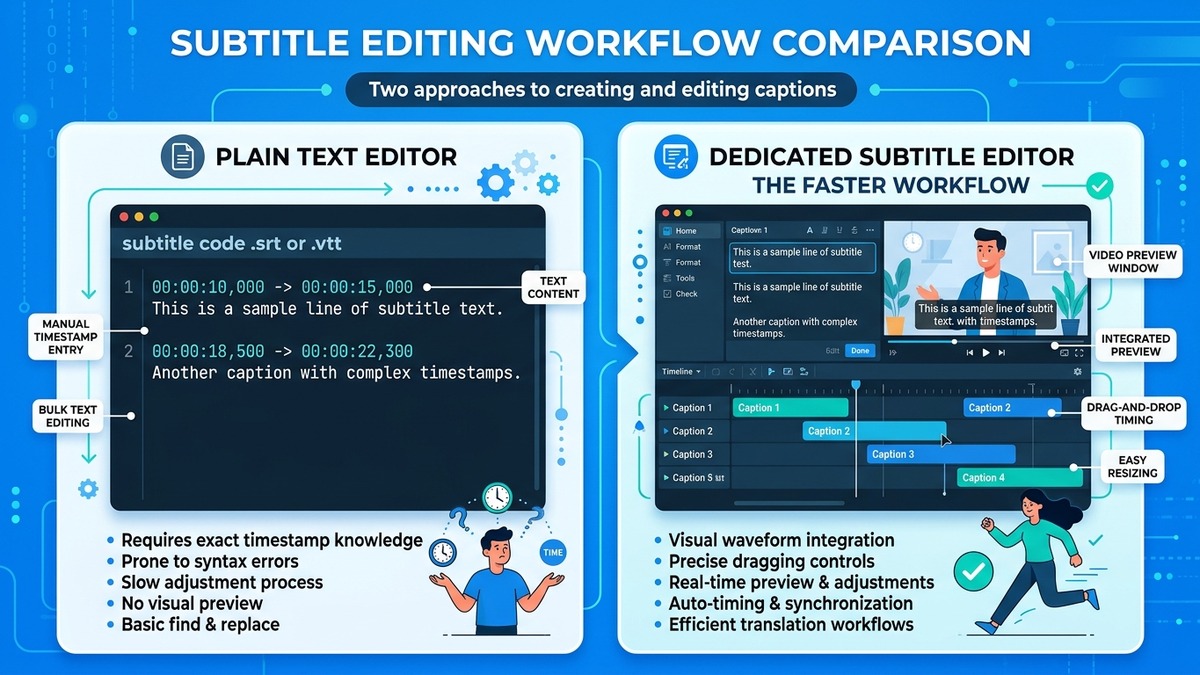
Because an SRT subtitle file is plain text, editing it is straightforward. You have two main approaches: using a general text editor or using a dedicated SRT file editor.
Editing with a Text Editor
Open the .srt file in any text editor (Notepad, VS Code, Sublime Text, TextEdit). You can directly modify:
- Subtitle text: Fix typos, rephrase sentences, or translate content
- Timestamps: Adjust start and end times to improve sync
- Sequence numbers: Add or remove entries (remember to renumber sequentially)
Common editing tasks:
- Shift all timestamps: If your subtitles are consistently early or late, you need to add or subtract a fixed offset from every timestamp. This is easier with a dedicated tool.
- Split long subtitles: If a subtitle spans more than two lines or exceeds 42 characters per line, split it into two entries.
- Merge short subtitles: If consecutive subtitles flash too quickly (under 1 second each), merge them into a single entry.
Editing with a Dedicated SRT File Editor
Specialized subtitle editors provide a visual timeline, preview playback, and batch operations that make editing far more efficient. Popular options include:
- Subtitle Edit (Windows, free and open-source) — the most feature-rich desktop subtitle editor, supporting 300+ formats
- Aegisub (Windows/macOS/Linux, free) — originally designed for ASS/SSA but fully supports SRT editing
- Jubler (cross-platform, free) — lightweight editor with spell-checking and translation features
These tools let you play the video alongside the subtitle timeline, drag timestamps visually, and apply batch corrections like shifting all cues by a fixed offset.
Where to Use SRT Files
The SRT format’s universal compatibility means you can use the same file across dozens of platforms and players. Here are the most common destinations:
Video Platforms
- YouTube: Upload SRT files in YouTube Studio under the Subtitles section. YouTube accepts SRT as the primary caption format and will display your subtitles with proper timing.
- Vimeo: Go to your video settings, click Distribution > Subtitles, and upload your SRT file. Vimeo supports multiple language tracks.
- Facebook / Instagram: Upload SRT files when publishing video posts. Facebook requires the filename to follow a specific pattern:
filename.language_code.srt(e.g.,my-video.en_US.srt). - LinkedIn: LinkedIn video posts accept SRT file uploads for closed captions directly in the post composer.
Video Editing Software
- Adobe Premiere Pro: Import SRT files as caption tracks via File > Import
- DaVinci Resolve: Import SRT files into the subtitle track on the Edit page
- Final Cut Pro: Import SRT captions using File > Import > Captions
Media Players
- VLC Media Player: Place the SRT file in the same folder as the video file with the same filename (e.g.,
movie.mp4andmovie.srt). VLC will load subtitles automatically. - Windows Media Player: Similar to VLC — matching filenames in the same directory enables automatic subtitle loading.
- MPV: Supports SRT natively with automatic detection or manual loading via command-line flags.
Web Players
If you embed videos on your website using HTML5’s <video> element, you can add subtitles using the <track> tag. Note that HTML5 natively supports the WebVTT format, so you may need to convert your SRT to VTT. The conversion is minimal: add a WEBVTT header and replace commas with periods in timestamps.
<video controls>
  <source src="video.mp4" type="video/mp4">
  <track src="subtitles.vtt" kind="subtitles" srclang="en" label="English">
</video>
If you need to handle voice recordings and convert them into text-based formats, this guide on voice memo transcription covers the workflow in detail.
Comparison of SRT Creation Methods
| Method | Speed | Accuracy | Cost | Best For |
|---|---|---|---|---|
| AI tool (Felo Subtitles) | 5 min per hour of video | 95%+ (clear audio) | Free tier available | Creators, marketers, educators |
| Manual text editor | 45-60 min per 10-min video | 100% (human precision) | Free | Short clips, corrections |
| Video editing software | Varies by editor | 100% (human input) | Requires software license | Editors already in post-production |
| YouTube auto-captions | Automatic (after upload) | 80-85% | Free | YouTube-only content |
Step-by-Step: Generate an SRT File with Felo Subtitles
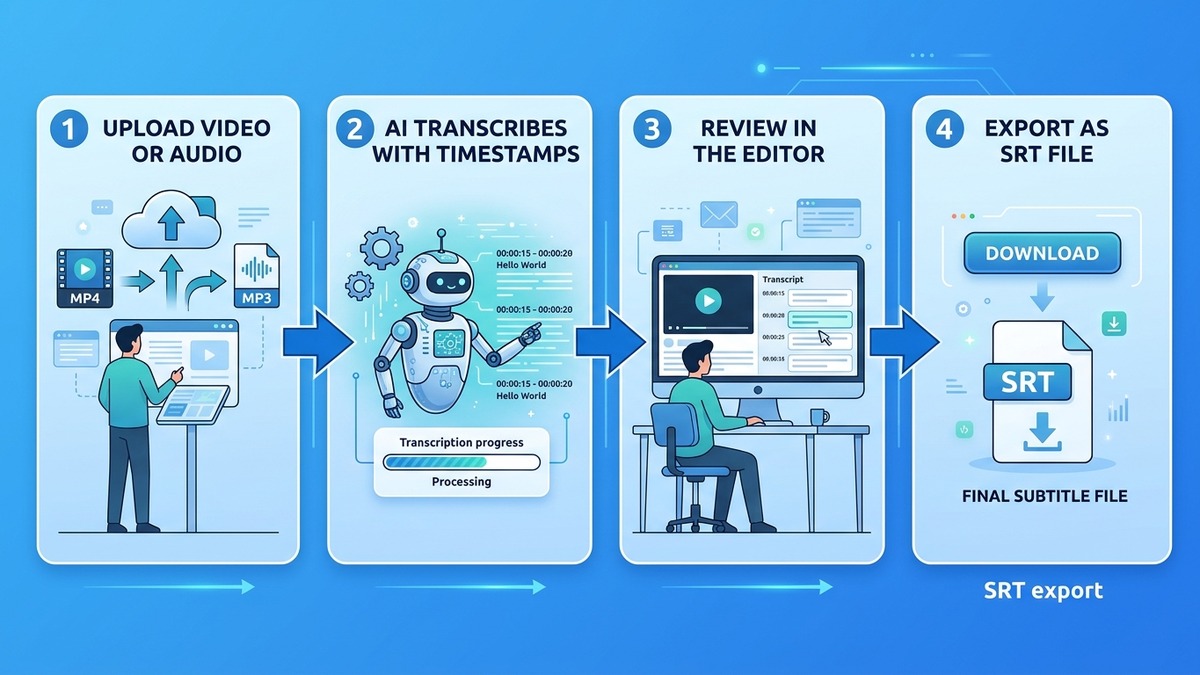
Follow these steps to create a professional SRT subtitle file using Felo Subtitles in under five minutes:
Step 1: Open Felo Subtitles
Visit subtitles.felo.me in your browser. No software installation is required — the tool runs entirely in the browser.
Step 2: Upload Your Video or Audio File
Click the upload area and select your video (MP4, MOV, AVI, MKV) or audio (MP3, WAV, M4A) file. Felo supports files up to 2 hours in length on the free tier.
Step 3: Select the Language
Choose the primary spoken language of your content. Felo Subtitles supports over 90 languages including English, Spanish, Japanese, Chinese, French, German, and Korean. For multilingual content, you can also enable translation to generate subtitles in a second language simultaneously.
Step 4: Generate Subtitles
Click “Generate” and wait for the AI to process your file. A 30-minute video typically completes in 2-3 minutes. The tool uses advanced speech recognition models to produce accurately timed subtitles.
Step 5: Review and Edit
The generated subtitles appear in an interactive editor with video playback. Review each line for accuracy, adjust timestamps if needed, and fix any proper nouns or technical terms the AI may have misrecognized.
Step 6: Export as SRT
Click the export button and select “SRT” as the output format. Your SRT file downloads instantly, ready to upload to YouTube, Vimeo, or any other platform.
For creators who also need to translate voice content, this article on Spanish to English voice translation explores how AI handles multilingual audio workflows.
Frequently Asked Questions
Q1. What does SRT stand for?
SRT stands for “SubRip Subtitle.” The format was originally developed for the SubRip software, which extracted subtitle tracks from DVD video files. Today, SRT is the most widely used subtitle format across all major video platforms, players, and editing software. The .srt file extension has become synonymous with subtitle files in general.
Q2. Can I open an SRT file in Word or Google Docs?
Yes, because an SRT file is plain text, you can open it in Microsoft Word, Google Docs, or any word processor. However, these tools may alter the formatting (adding extra line breaks, changing encoding) when you save. For editing SRT files, a plain text editor like Notepad, TextEdit, or VS Code is recommended to preserve the exact formatting that players and platforms expect.
Q3. How do I fix SRT subtitles that are out of sync?
If your subtitles appear too early or too late, you need to shift all timestamps by a fixed offset. The fastest approach is to use a dedicated subtitle editor like Subtitle Edit, which offers a “Shift All” feature. Alternatively, if the offset is consistent (e.g., all subtitles are 2 seconds late), you can use a command-line tool like FFmpeg to adjust: ffmpeg -i input.srt -itsoffset 2 output.srt. If the drift increases over time (progressive desync), you will need to set sync points at the beginning and end and let the editor recalculate all intermediate timestamps.
Q4. What is the maximum number of lines per subtitle entry?
The SRT format technically allows unlimited lines per entry, but best practice limits each entry to two lines with a maximum of 42 characters per line. This ensures readability across different screen sizes and player interfaces. For broadcast television, standards like the BBC Subtitle Guidelines recommend even shorter lines — 37 characters maximum.
Q5. Can SRT files include formatting like bold or italic?
The original SRT specification does not include styling, but many modern players (including VLC, YouTube, and most web-based players) support basic HTML tags within SRT files. You can use <b> for bold, <i> for italic, and <u> for underline. For example: <i>This text appears in italics.</i>. More advanced styling (colors, fonts, positioning) is not reliably supported in SRT and requires the ASS or WebVTT format instead.
Q6. How do I convert an SRT file to VTT or other formats?
Converting SRT to VTT (WebVTT) is simple because the formats are nearly identical. Add WEBVTT as the first line, remove sequence numbers, and replace commas with periods in timestamps. For batch conversion or conversion to other formats (ASS, SSA, TTML), dedicated tools like Subtitle Edit or FFmpeg handle the process automatically. Felo Subtitles also allows you to export directly in multiple formats, eliminating the need for manual conversion.
Summary
The SRT file remains the gold standard for subtitles in 2026. Its plain-text simplicity, universal platform support, and ease of editing make it the first choice for creators, educators, and businesses who need reliable closed captions.
Here is what to remember:
- The SRT format uses a simple structure: sequence number, timestamps, and text, separated by blank lines
- For creating SRT files, AI tools like Felo Subtitles offer the fastest path from video to finished subtitles — what once took hours of manual work now completes in minutes
- Editing is straightforward in any text editor, though dedicated subtitle editors provide visual timelines and batch operations
- SRT files are accepted by YouTube, Vimeo, Facebook, LinkedIn, VLC, and virtually every video platform and player
Whether you need subtitles for accessibility compliance, SEO benefits (search engines index caption text), or international audience reach, mastering the SRT file workflow is an essential skill for modern video production.
Generate perfectly timed SRT files — automatically, in minutes
Start Creating SRT Files with Felo
Free to start · No credit card required